![APLANET_Isotipo-1.png]](https://help.aplanet.org/hs-fs/hubfs/APLANET_Isotipo-1.png?height=40&name=APLANET_Isotipo-1.png)
The Workflow functionality empowers administrators to efficiently manage ESG data collection by creating custom campaigns and generating data points (DPs) in bulk. This tool simplifies data management by assigning data points to specific data providers and validators, allowing for controlled and organized data requests.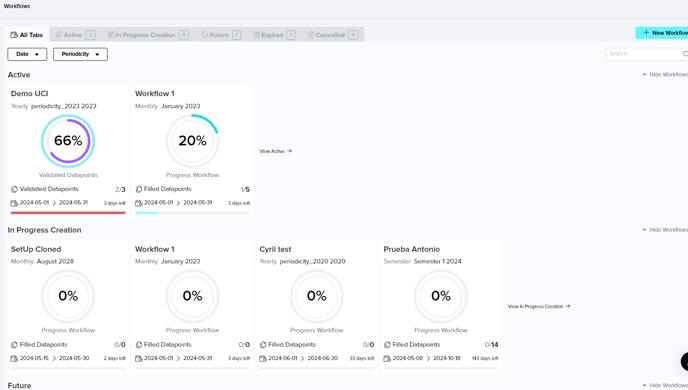
Why Workflows Matter
Workflows provide a comprehensive solution to streamline the entire data collection process, giving clients the flexibility to organize multiple campaigns as needed. The platform offers a clear, overall view of the data collection process, showing:
- The total number of data points.
- The percentage of data points filled and validated.
- Performance metrics of data providers and validators throughout the collection period.
Workflow Status Overview
Workflows are categorized into six tabs based on their current status:
- Active: Displays all workflows that are currently launched and in progress, along with the number of days left to complete them.
- In Creation Progress: Stores workflows that have been set up but are not yet launched.
- Future: Shows workflows that are scheduled to start at a future date.
- Expired: Lists workflows that have passed their end date.
- Cancelled: Displays workflows that have been deleted.
How to Create a Workflow
Creating a workflow is a straightforward process that ensures efficient data collection. Here’s a step-by-step guide:
- Name the campaign for easy identification.
- Select the datapoints periodicity, defining how often the data will be reported (e.g., yearly, monthly).
- Choose the datapoint period, selecting which year, month, quarter or semester it will be reported.
- Set the start and end dates, defining the campaign’s time frame.
- Select the KPIs that will be grouped within the workflow.
- Assign dimensions (e.g., company, country) to each KPI. You can create combinations if a KPI belongs to multiple dimensions.
- Assign data providers and validators, ensuring the relevant users are assigned to each KPI (this step requires prior creation of working groups).
- Launch the campaign, and notifications will be sent to the respective users.
After launching it, data providers and validators will receive emails with their assigned data points, which will be organized in the "My Tasks" environment for easy tracking.
Managing Workflows: Key Actions
Once a workflow is created, several management actions can be taken from the top-right corner of the page:
1. Clone a Workflow
You can clone an existing workflow to replicate its structure:
- Access the workflow list and select the one you wish to clone.
- Click the "Clone Workflow" icon.
- Update dimensions and users as needed.
- Start the cloned workflow immediately or save it as a draft for future use.
2. Send a Reminder
To remind users of pending tasks:
- Access the workflow from the dashboard.
- Click the Reminder button to send an email reminder to users with outstanding tasks.
3. Edit a Workflow (Pre or Post-Launch)
You can edit workflows at any stage:
- Access the tabs "In Creation Progress" for pre-launched workflows or "Active" for post-launched ones.
- Edit details such as the workflow name, periodicity, dates, and KPIs.
- Update dimensions and users as needed.
- Launch or relaunch the workflow, and assigned users will receive email notifications to start their tasks.
4. Stop a Workflow
To stop an active workflow:
- Select the active workflow from the dashboard.
- Click the "Stop Workflow" button to halt the campaign immediately.
- They can't be deleted, but they will be moved to the "Cancelled" tab
Deadlines in Workflows: Structuring Task Management
Workflows also feature two distinct deadlines to provide better structure and clarity for task management:
Two Types of Deadlines
Each Workflow includes the following deadlines to guide task completion:
-
Fill Data Deadline:
- After this date, Data Providers lose access to the Datapoints in the My Tasks section.
- Data entry for these Datapoints is no longer possible.
-
Validation Deadline:
- After this date, Validators can no longer access the Datapoints in the My Tasks section for review and validation.
Visibility on the Datapoints Screen
Both deadlines are displayed on the Datapoints screen, ensuring that users can see their due dates at a glance and manage their responsibilities accordingly.
Admin & Super Admin Access
Even after the deadlines pass, Admins and Super Admins retain access to the Datapoints via the Datapoints screen, enabling continued oversight and follow-ups when necessary.
These functionalities ensure clear timelines for all team members and a more structured approach to Workflow management.
If you still have doubts and need to get in touch with our customer success team, please reach out to "support@aplanet.org" and you will be attended as soon as possible.